
Q3 was a big quarter for Papertrail. You can now ask questions about your logs in plain English, explore structured logs by field, inspect any single log event in detail, and archive to your own S3 bucket with a setup that keeps you in control of access. We also shipped a round of smaller improvements that make sending logs and searching them faster and smoother.
Here is a quick overview. The two Preview features have their own deep-dive articles, linked below.
At a glance
- AI Assistant for Papertrail (Preview) – ask questions about your logs in natural language.
- Analyze (Preview) – explore structured logs by field over any time range.
- Log Event Details side sheet in Log Viewer – see every parsed field and related entity for a single log event
- Custom S3 archiving – archive to your own S3 bucket, now available to all customers on AWS data cells
- Log alerts based on saved searches
- Faster long-range search on the REST API
- New, standards-compliant way to send your ingestion token over syslog
- A better velocity chart
AI Assistant for Papertrail (Preview)
The AI assistant in SolarWinds Observability, is now available to Papertrail customers as a Preview. Instead of building queries by hand, you can ask questions such as “summarize errors in the last hour” and get answers that link straight back to the Log Viewer.
AI Assistant can help you with:
- Log search and summarization
- Event counts and trends, so you can tell whether an issue is getting better or worse
- Ingestion usage analysis, such as your noisiest sources and volume trends compared to a baseline
AI Assistant is off by default. An organization Admin or Owner can turn it on under Settings → AI.
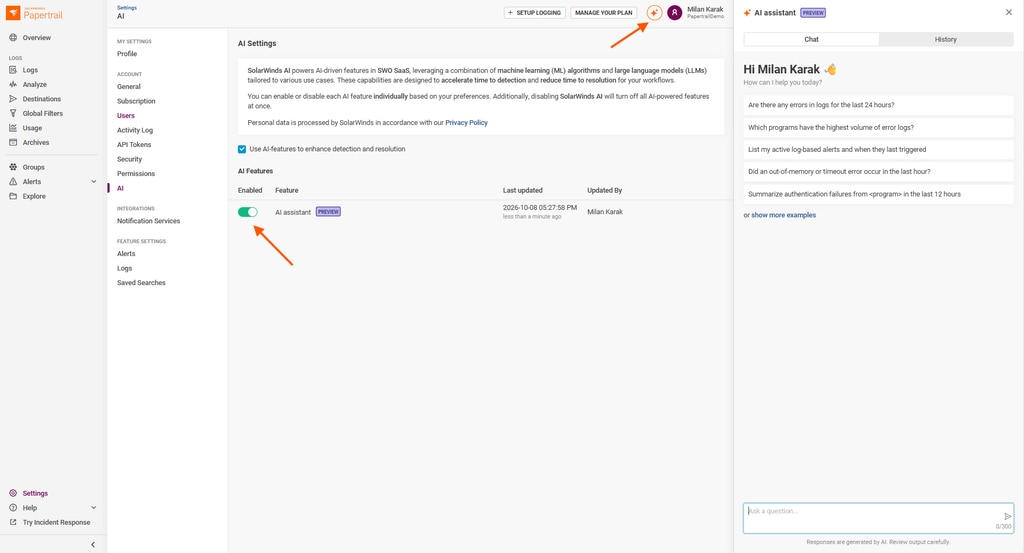
Want the details, example prompts, and what to expect from a Preview? Read the full Ask Your Logs: The AI Assistant Comes to Papertrail (Preview) – Milan Karak – Confluence article.
Analyze (Preview)
Log Viewer is the right place when you want a live, continuously updating stream. Analyze is built for the other half of the job: digging into structured logs over a time range you choose.
With Analyze you can:
- Browse every field in your logs in a flat, searchable Field Explorer – including JSON fields, OpenTelemetry attributes, and syslog metadata
- See the top values for any field and add a field as a column with a click
- Sort by any column and filter by field using operators or a typed query
- Spot spikes and drops at a glance with the log volume chart
Fields are also extracted automatically from many common log formats, including Java (Log4j, Logback), Apache, Nginx, Go, Python, Node.js, PHP, Rails, HAProxy, MySQL, MongoDB, and AWS ELB/ALB/CloudFront/VPC Flow Logs. Analyze respects your log group permissions, so people only see the data they are allowed to see. You will find Analyze in the left navigation.
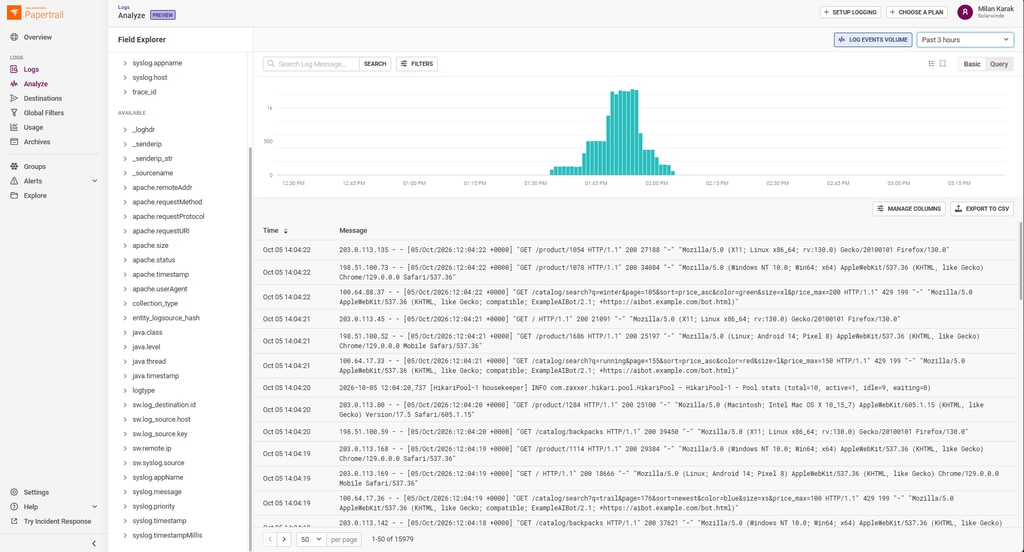
Read the full Analyze article or jump straight to the Analyze logs documentation.
Log Event Details side sheet in Log Viewer
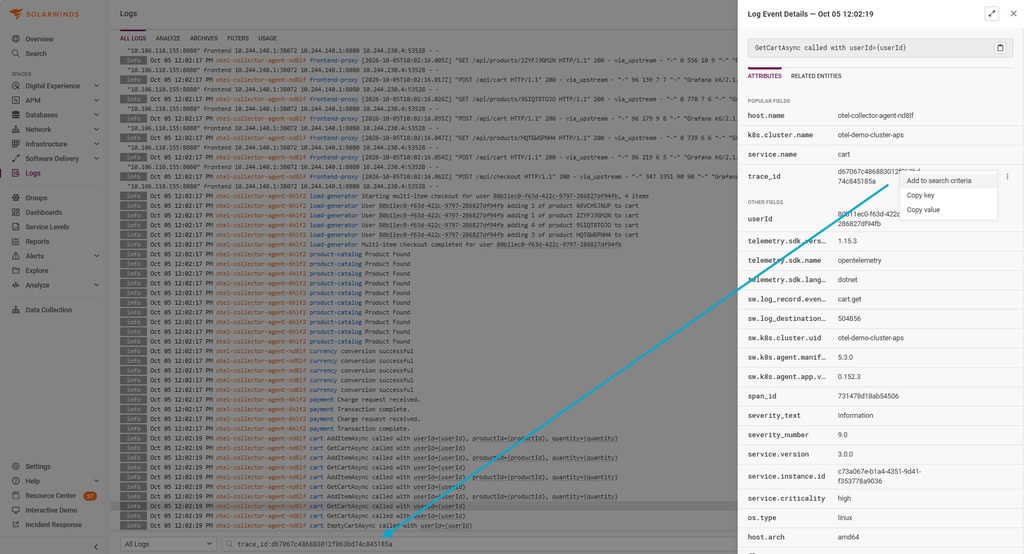
Found an interesting log line? You can now open a side sheet for it without leaving Log Viewer. Open it from the ⋮ menu by choosing Show Log Event Details, or click the “>” at the right of the log message.
The side sheet shows:
- The full message, with JSON pretty-printed
- All parsed and structured fields, with the most important ones first
- An Attributes tab and a Related Entities tab, where related entities link to their detail pages
Every field has one-click actions, so you can add it to your search as a filter (for example trace_id:<value>) or copy its value. That makes it quick to go from “what is this event?” to “show me everything from the same trace, host, or service” without writing a query.
Archive to your own S3 bucket – securely
Custom S3 archiving is now available to all customers on AWS data cells, including new Papertrail accounts. Previously it was limited to migrated Papertrail users.
Setup uses a two-step IAM assume-role chain with a unique External ID for your organization. In practice, that means:
- You grant access to your bucket only
- You can revoke access at any time
- SolarWinds stores no credentials
To set it up, create an IAM role in your AWS account with a trust policy that uses the External ID shown in the product, grant it write access to your bucket, then enable Amazon S3 under Settings → Logs → Log archives. After setup, it takes roughly 6 to 7 hours for logs to appear in the archive.
Already archiving to a custom bucket? Your existing configuration keeps working.
See Export logs with custom S3 archiving for the step-by-step guide.
More improvements
Create log alerts from a saved search
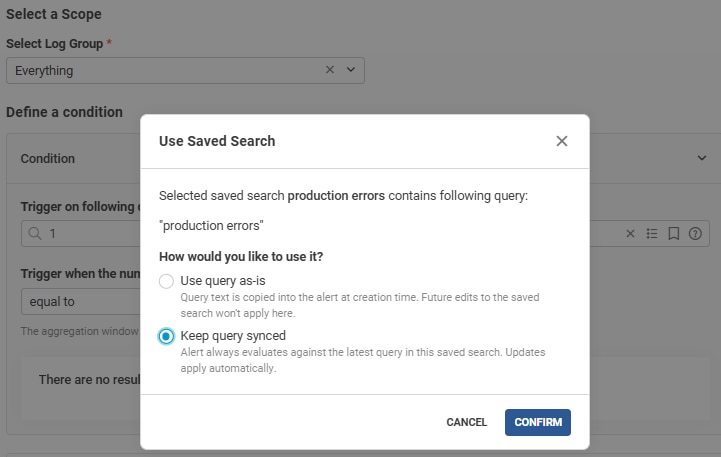
You can now base a log alert on a saved search instead of just a copy of its query. When defining an alert, select a saved search on the Alert Condition step of the alert wizard, then select the mode: use the query as-is, or keep it synced with the saved search.
Why synced alerts are useful:
- Update once, and every linked alert follows. No more editing each alert to keep queries in sync
- Alerts stay aligned with the searches you use to investigate
Faster long-range log search on the REST API
Searching the REST API (/v1/logs) across a wide time range is now much faster. The API now searches multiple time windows within a single request and adapts its search window after a fast first query. In our measurements, the gap between API and UI search times shrank from roughly 140% to under 20%.
A standards-compliant way to send your ingestion token over syslog
You can now pass your ingestion token as a named parameter in a structured data element, in addition to the existing format:
Existing: [<TOKEN>@41058] New: [solarwinds@41058 token="<TOKEN>"]
The existing format remains supported indefinitely, with no deprecation date, so nothing changes for current senders. The new format fits inside the 32-character limit RFC 5424 sets for structured data IDs, which our long token-as-ID format could not. As a result, tools such as Log4j2, the Python rfc5424logging handler, the Docker syslog driver, and Fluent Bit now work without custom workarounds.
A better velocity chart
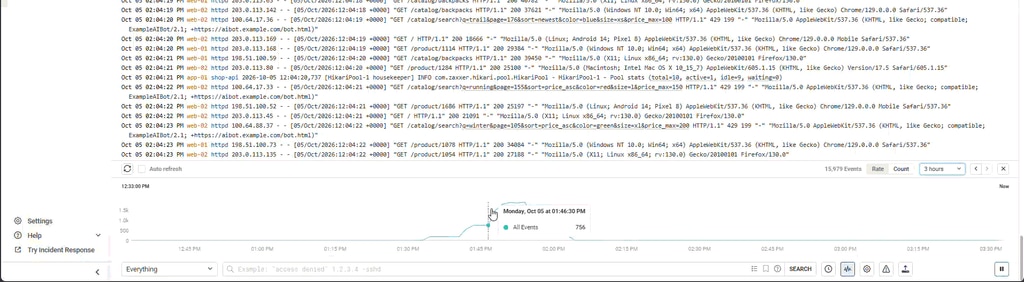
You can now click and drag on the velocity chart to zoom into a custom time range. A new toggle also shows normalized velocity (logs per unit of time), so values stay comparable when the bucket size changes.
What’s next
We are continuing to invest in search performance, structured log analysis, and AI-assisted workflows. SW1 and Analyze are both in Preview, so your feedback directly shapes what comes next. Try them, tell us what works and what doesn’t, and watch this space for more.

