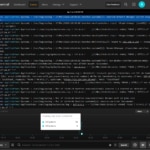
Sending server logs to Papertrail over Syslog takes one setup command, and running it needs admin access: sudo on Linux, or Administrator rights on Windows. If you started a free trial but don’t have that access here are instructions to get your logs flowing. Copy your setup command, send it to a teammate who has admin access using one of the ready-made messages below, and your logs can be streaming in Papertrail within minutes of them running the script. This post walks you through those steps.
Before you start
Have these ready so your admin can act on your message right away:
- Who to ask: a teammate with admin access to the server, often someone on your IT, ops or platform team.
- Which server: its name or IP address, so your admin knows exactly where to run the command.
- Its operating system: Linux or Windows. Your setup command is different for each.
Step 1: Copy your setup command
- In your Papertrail trial, open Usage Instructions for your destination.
- Make sure Syslog is selected.
- In the Operating System, pick the one your admin’s server runs: Linux (Debian/Ubuntu), Linux (RHEL), or Windows. The command updates to match.
- Click the copy button next to the command.
Keep it within your team. The command includes your account’s ingestion token, which lets anyone who has it send logs to your account. Share it in a direct message or email, never in a public channel or ticket.
Step 2: Send it to your admin
Pick the message that fits how your team works and fill in the brackets. Paste the command you copied in Step 1 where it says [PASTE YOUR SETUP COMMAND]. Each message tells your admin what you need, what the command does and how long it takes.
Subject: Can you run a 5-minute setup command for our Papertrail trial?
Hi [Name],
I’m trialing Papertrail for log search and alerting, and I need someone with admin access on [server name] ([Linux/Windows]) to run one setup command. It takes about five minutes.
The command sets up the server’s syslog to forward its logs to Papertrail. More detail on what it does: [LINK TO THIS POST]
Here’s the command. It includes our account token, so please keep it within the team:
[PASTE YOUR SETUP COMMAND]
Once it’s run, logs should show up on my end in under a minute. If they don’t, the most likely cause is a firewall blocking outbound traffic to Papertrail.
Thanks!
[Your name]
Slack: quick ask
Hey [Name], quick favor: could you run a one-command setup on [server name] for our Papertrail trial? It needs admin access and takes about 5 minutes. I’ll DM you the command, since it includes our account token.
Slack: with the command
Hi [Name]! I’m testing Papertrail for log search and alerts and need someone with admin access on [server name] ([Linux/Windows]) to run this setup command:
[PASTE YOUR SETUP COMMAND]
It sets up syslog to forward the server’s logs to Papertrail and takes about 5 minutes. Please keep the command in this DM, since it includes our token.
Step 3: Watch for your logs
Once your admin runs the command, keep your Usage Instructions page open. The Destination Status panel changes from Waiting for logs… to Receiving logs, usually in under a minute.
Then open the Logs page to see the server’s events streaming live. From there you can search across them, save the searches you use most, and set alerts so Papertrail tells you when something goes wrong.
If logs don’t show up
If the status still says Waiting for logs… after a couple of minutes, ask your admin to check these:
- The right command was used. The operating system picked in Step 1 matches the server’s (Linux or Windows).
- The command finished without errors. Any error message in the output helps support finding the problem.
- The syslog service is running on the server.
- The server can reach Papertrail. A firewall isn’t blocking outbound traffic to the collector host and port in the command.
Still stuck? Describe what’s happening in the “Need help?” form on your Usage Instructions page, and the Papertrail team will reach out.