It is 2 a.m., and something is wrong. The answer is somewhere in your logs, but finding it means guessing keywords, remembering search syntax, and scrolling through thousands of lines. Your systems keep growing, so you have more data than ever and less clarity when it counts.
Today, we are bringing the AI assistant, the SolarWinds in-product AI agent (also known as SW1 in earlier previews), to Papertrail. Ask your logs a question in plain English and get an answer, with a link back to the evidence.
What is the AI assistant?
The AI assistant is the AI agent built into SolarWinds products. In Papertrail, you ask questions in natural language and get short explanations and suggested next steps based on data you already have access to. Answers come with a link that opens the matching logs in the Log Viewer, so you can always check them yourself.
What the AI assistant can do today
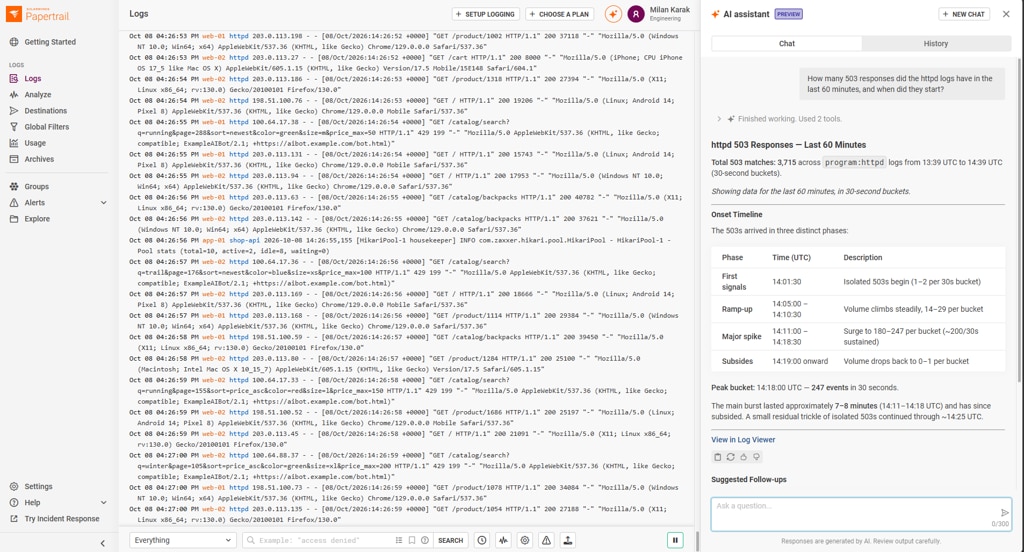
Let’s follow a quick investigation. You run an online shop, and support says that pages are slow and some customers see errors. Your Apache logs come from httpd, and your Java app logs from shop-api. The assistant opens as a side panel next to your logs, so the Log Viewer stays in view.
Ask in plain English.
No search syntax needed. The assistant turns your question into a Log Viewer search, runs it, and answers with what it found: how many events matched, when the problem started, and how it grew. It summarizes rather than lists, and the link at the bottom opens the matching events in the Log Viewer so you can read the lines yourself.
“How many 503 responses did the httpd logs have in the last 60 minutes, and when did they start?”
Find what the errors have in common
Let the assistant read a sample of the repetitive lines for you.
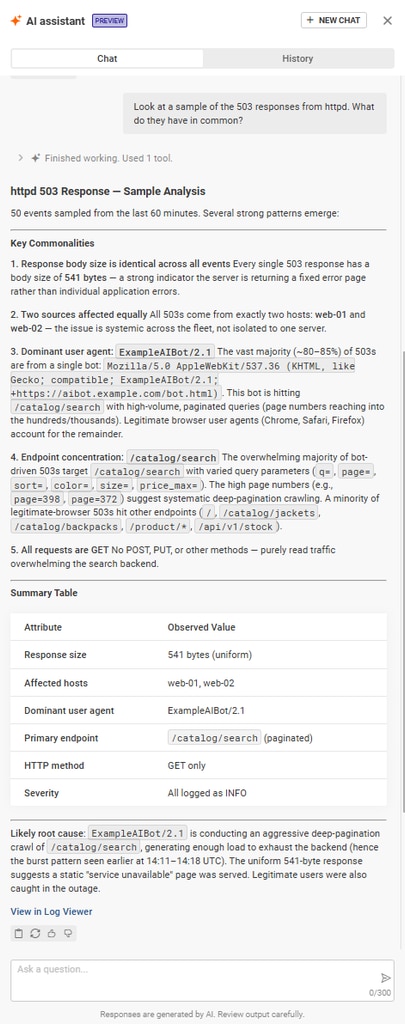
“Look at a sample of the 503 responses from httpd. What do they have in common?”
The assistant lists what the sampled errors share: the same 541-byte response (a fixed error page), two web servers, and one user agent, ExampleAIBot/2.1, paging deep into /catalog/search. It also notes that regular browsers got 503s too. Then check the application side:
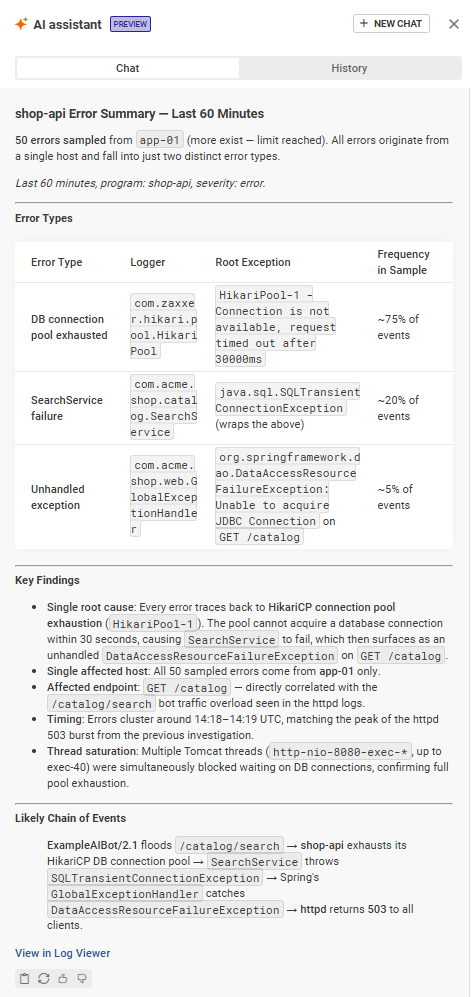
“Summarize the errors from the shop-api program in the last 60 minutes.”
The assistant groups the errors by type, names the single root cause (the database connection pool is exhausted) and lays out the likely chain of events, from the bot to the 503s your customers saw. It also tells you when it is working from a sample.
Check that your fix worked
You rate-limit the bot. Did it help?
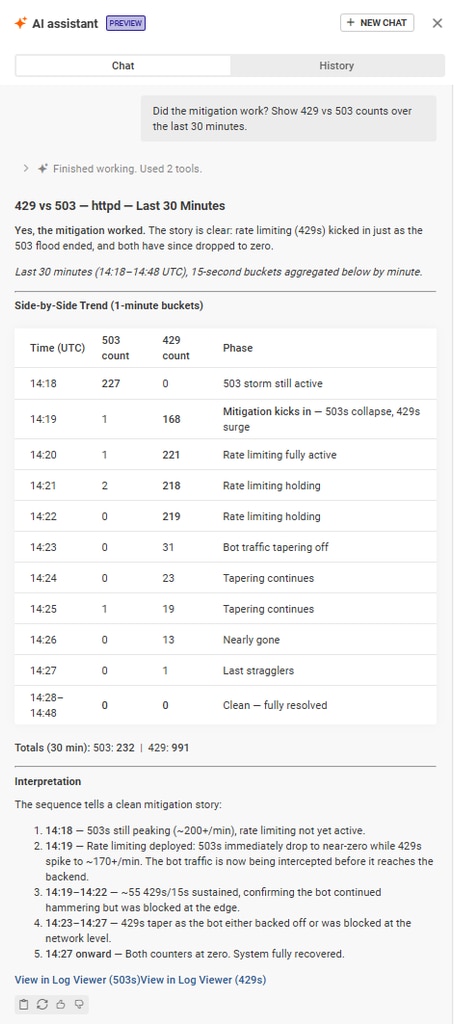
“Did the mitigation work? Show 429 vs 503 counts over the last 30 minutes.”
The assistant puts the two counts side by side, minute by minute. You can see the 503s drop away as the 429s start, and then the 429s fade as the bot backs off. It links to both sets of events in the Log Viewer.
See what is eating your log volume
Incidents generate a lot of logs, and log volume is money. Ask which sources are the noisiest and how that has changed.
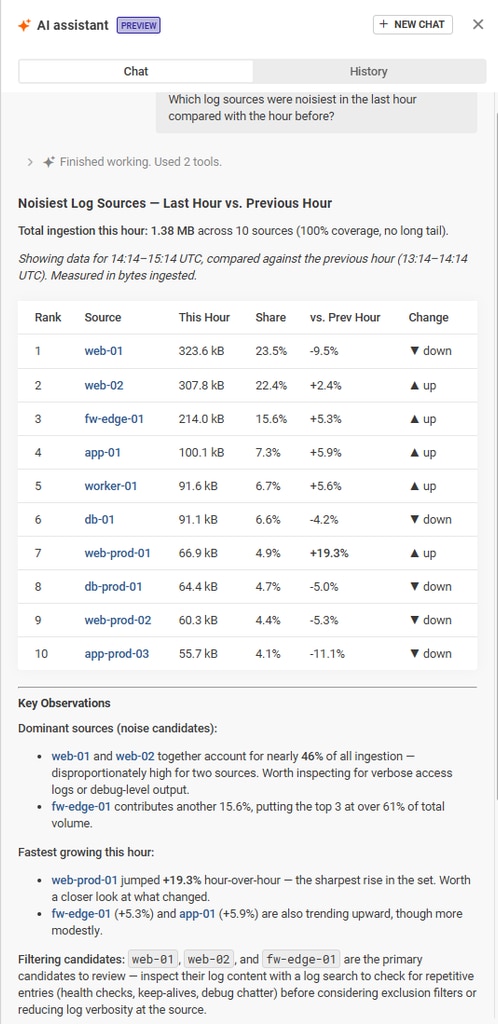
“Which log sources were noisiest in the last hour compared with the hour before?”
The assistant ranks your sources by volume, showing each source’s share of the total and its change from the previous hour. It calls out the sources that dominate ingestion and the ones growing fastest, and suggests which to review first for repetitive entries such as health checks or debug chatter, before you consider exclusion filters.
Tips: name the program or host, give a time window such as “in the last hour”, and ask follow-ups. The assistant remembers the conversation, so you can build on earlier answers. It works from a sample of matching events and tells you when it did, so use the Log Viewer link when you need exact numbers. Times in answers are shown in UTC.
Your data, your control
The AI assistant only uses data you already have access to. Standard patterns of personal data are masked before anything reaches the language model, requests are routed to AWS Bedrock, your data is not used to train models, and it makes no changes without your consent. Admins can turn it off at any time. Details are in the AI assistant for SolarWinds Observability SaaS FAQ.
How to get started
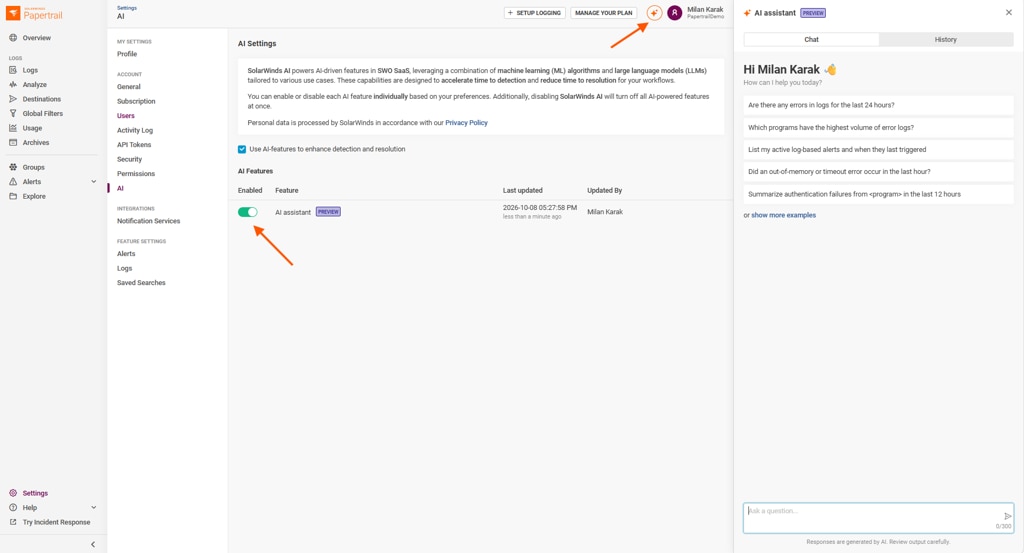
An administrator enables the AI assistant under Settings > AI. Once enabled, click the sparkle icon in the top-right corner of the app to open the AI assistant panel and start asking questions.
What is coming next
- Understand far more logs: Today, the assistant reads a sample of events. We are working on compressing logs into patterns, so thousands of near-identical lines become a handful of patterns with counts, and the assistant can spot what is new or unusual.
- Act on what it finds: The assistant will help you create alerts, exclusion filters, log groups, and saved searches straight from the conversation. It will show exactly what it plans to create, and nothing changes until you approve.
We are not committing to dates, and the order depends on what you tell us.
Try it and tell us what you think
The AI assistant for Papertrail is new, and your input shapes it. Try it on your own logs and tell us which questions it could not answer, what you would like it to do next (alerts, filters, groups, saved searches, something else), and where you did not trust the answers. Please share it through the Give Feedback option in the Help menu, or rate any answer with a thumbs up or down. Happy logging.